Expense Create/Details
Parks & Rec > Expense > Create (or Search > Edit)
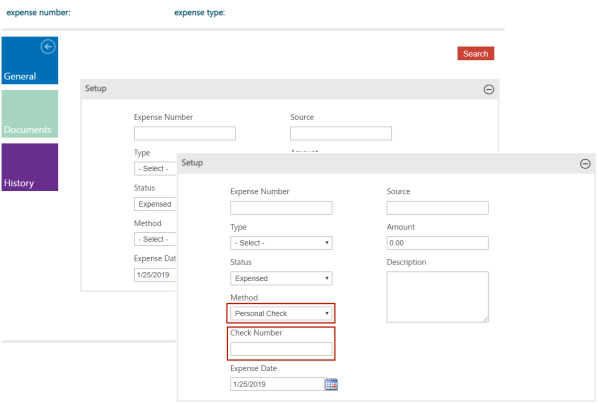
The fields available on the Expense page vary according to the values that you enter; for example, if you select Personal Check from the Method drop-down, the page refreshes to include the Check Number field.
Or, if you create an expense record to pay an instructor, when you click Save, the page refreshes to include the Instructor section, which you may use to identify the recipient.
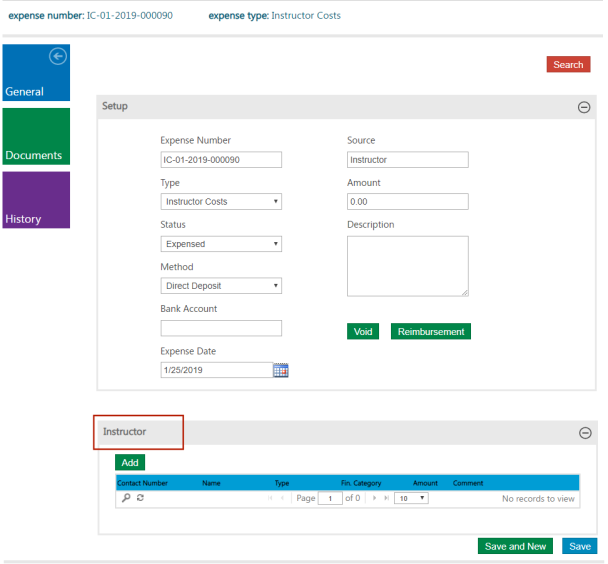
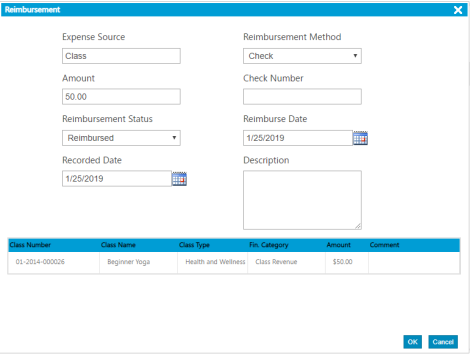
In this case, the value of the Amount field in the Instructor section must match the value of the Amount on the expense record. For reimbursable instructor expenses, click Reimbursement to specify a reimbursements method and date.
For the Class, Instructor, Location, or Rental Item expense records, when you select the edit option, you may edit the amount and select a Financial Category Name.
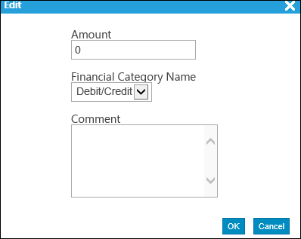
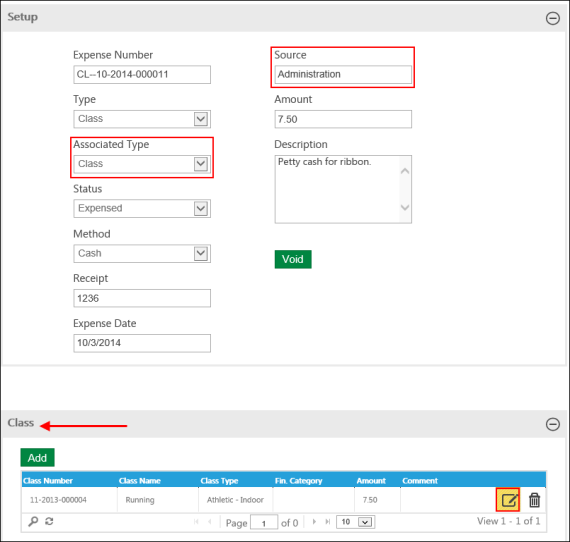
For expenses with a Source of Administration, the Associated Type field is available. From the drop-down, select the associated expense type: Class, Instructor, Rental, or Location. The associated type group displays; use it to specify the type. Once you have added that type record, click the Edit icon to specify a financial category.
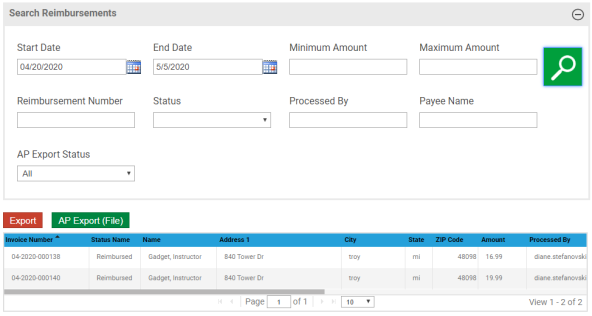
For instructor payments that have a defined expense type that includes a cashier expense Source of Instructor and for which the Instructor Type Details defines a Financial Group for instructors with debit and credit accounts to use for exporting payments, you may create an export file of instructor expenses. After you have created an instructor expense reimbursement record, click Export in the Reimbursement group on the Parks & Rec tab. Depending on the parameters defined on the Integration Settings page of the System Setup group on the Administration tab, click Export or AP Export to export the data.